Guides › Privacy
Screen Recording permission on Mac: what it lets an app see, how to allow it and how to revoke it
Updated 23 November 2026 · by Vistaar Studio
Short answer: the permission lets an app capture what is on your screen while that app is running. On recent macOS it also covers the sound your Mac plays. It is not limited to the app's own window. You switch it on or off per app in System Settings › Privacy & Security › Screen & System Audio Recording, and you can change your mind at any time.
So say yes to an app you know, for a feature that clearly needs to see the screen, and no to anything else. The steps below come from Apple's Mac User Guide, and we read the labels off a Mac running macOS 26.2.
What the permission covers
The text in System Settings is blunt about it: "Allow the applications below to record the content of your screen and audio, even while using other applications." An app with this permission can take pictures or video of anything visible on your displays, including other apps' windows and notifications that pop up.
Screenshot apps, screen recorders, video-call apps and screen-text readers all need it.
What it does not do:
- It is not keyboard logging. Seeing what you type is a separate permission called Input Monitoring. Controlling your Mac is Accessibility. An app needs you to approve those separately.
- It does not open your files. File access is handled by Files & Folders and Full Disk Access.
Four permissions people mix up
All four have a pane in System Settings › Privacy & Security. The descriptions are Apple's.
| Permission | What it lets an app do | Where to change it |
|---|---|---|
| Screen & System Audio Recording | Record your screen and audio, or just your audio | Screen & System Audio Recording pane |
| Accessibility | Run scripts and system commands to control your Mac | Accessibility pane |
| Input Monitoring | Monitor input from your mouse or trackpad, and see what you type on the keyboard | Input Monitoring pane |
| Full Disk Access | Access all files on your Mac, including data from other apps such as Mail, Messages and Safari, and Time Machine backups | Full Disk Access pane |
What the setting is called on your macOS
- macOS Sonoma 14, Sequoia 15, Tahoe 26 and macOS 27: Screen & System Audio Recording. Apps in the top list can record the screen and audio. Apps under System Audio Recording Only can record sound but not the picture.
- macOS Ventura 13: Screen Recording. It covers the screen only.
How to allow screen recording
Usually the app asks first. To do it by hand:
- Choose Apple menu › System Settings.
- Click Privacy & Security in the sidebar. You may need to scroll down.
- Click Screen & System Audio Recording.
- Find the app in the list and turn its switch on. macOS may ask for your password or Touch ID.
- If macOS offers Quit & Reopen, click it.
Why the app has to quit and reopen
A running app doesn't pick up the new permission straight away. macOS says so in the dialog: the app "may not be able to record the contents of your screen until it is quit." Click Quit & Reopen to restart it now, or Later if you have unsaved work.
If the app is missing from the list
Apps show up after they have asked. Use the feature that needs the screen once, then look again. Or click the Add button (+) below the list and choose the app.
How to see which apps have it
Open the same pane. Every app with its switch on can record your screen.
How to turn it off
- Flip the switch. In Screen & System Audio Recording, turn the app off. If it is running, macOS warns that it "will be able to record the contents of your screen until it is quit", so choose Quit & Reopen.
- Reset from Terminal.
tccutil reset ScreenCaptureclears the decision for every app, and each one has to ask again. To reset a single app, add its bundle identifier, for exampletccutil reset ScreenCapture com.example.app. Apple's manual page describes reset as "causing apps to prompt again the next time they access the service".
How macOS tells you an app is looking
The menu bar item. Since macOS Sonoma, a screen sharing item appears in the menu bar while an app is capturing. Open it and macOS names the app, with a line such as "[App] Is Accessing Your Screen". Apple's notes describe this menu as purple. A separate purple dot next to Control Center means system audio is being recorded.
The repeat reminder. macOS Sequoia 15 added a dialog that comes back from time to time for apps that capture the screen directly. On macOS 26.2 it reads: "[App] is requesting to bypass the system private window picker and directly access your screen and audio." The buttons are Allow and Open System Settings. Apple has not published a schedule. 9to5Mac and MacRumors reported it as monthly when Sequoia shipped, and Apple's 15.1 notes say you see fewer of these dialogs for apps you use regularly. Treat "about once a month, sometimes less" as a rough guide.
Apps that never ask: the system picker
Since Sonoma, an app can hand the job to a picker that macOS itself shows. You choose a window or a display, and the app receives only that. Apple told developers that an app using this picker "is not required to obtain separate permission to capture the screen".
What to check before you click Allow
- Do you know who made it? Apple's own advice is to learn the privacy practices of any third party you allow.
- Does the feature need the screen? A screenshot tool does. A calculator does not.
- Where does the capture go? One simple test: turn Wi-Fi off and see if the feature still works.
- Is it asking for more? Screen Recording plus Accessibility plus Input Monitoring is a lot of trust for one app.
If all you want is the words from something on screen, our guides on copying text from an image and copying text you can't select use tools built into macOS. So do the Mac screenshot shortcuts.
Our own app: where Desk Buddy uses this permission
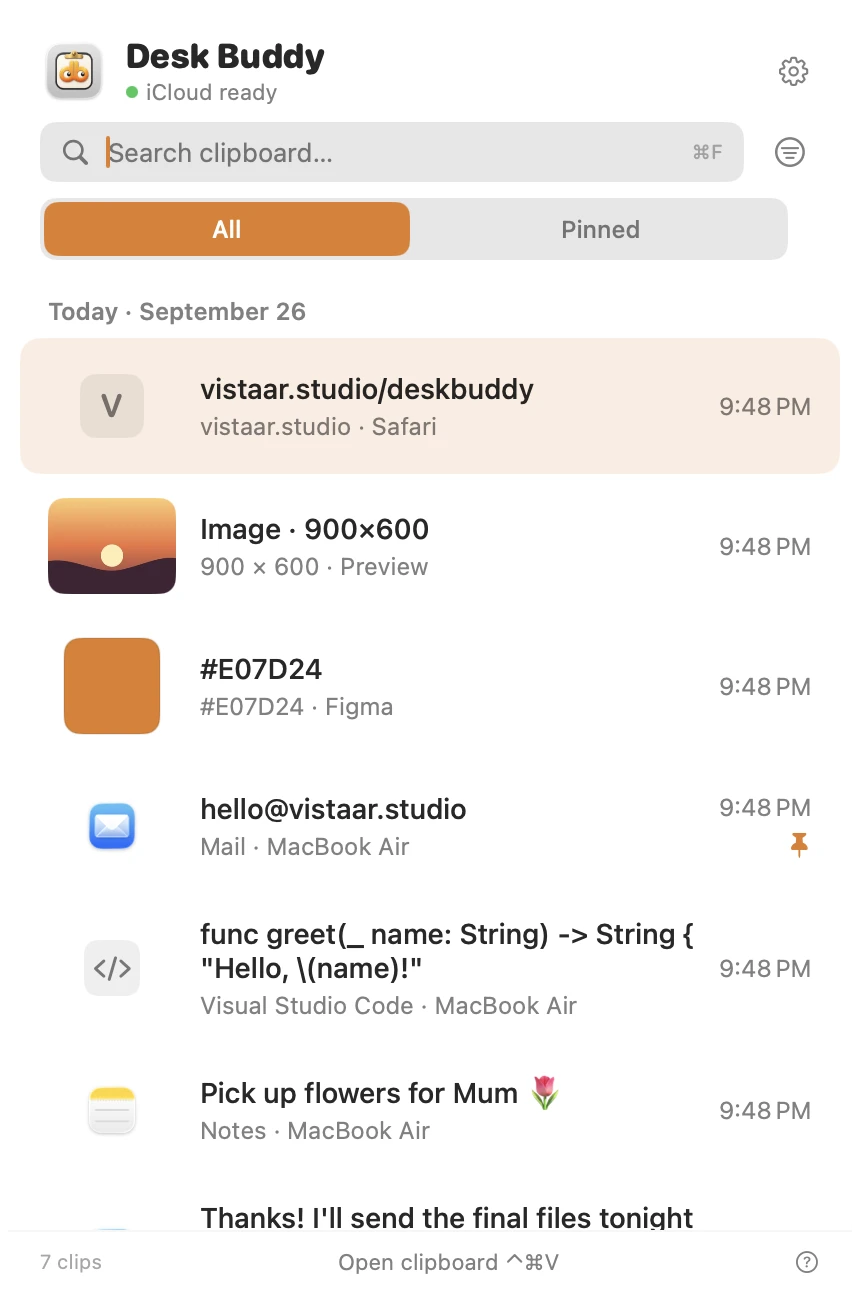
Desk Buddy is a clipboard manager for Mac made by us, Vistaar Studio, so read this section knowing that. One of its features, Copy Text from Screen, needs the Screen Recording permission. Press ⌃ ⌘ 2 and drag a box over anything on screen. The recognised text goes onto the clipboard and into your history. QR codes and barcodes in the box are read too.
macOS asks for the permission once, the first time you use the feature. The recognition runs on your Mac with Apple's Vision framework, with no network connection and no account. Desk Buddy needs macOS 14 or later.
FAQ
Is it safe to allow screen recording on Mac?
It depends on the app. The permission lets it capture anything visible on your screen while it is running, so allow it only for an app you know, for a feature that needs the screen. You can turn it off again in System Settings, Privacy & Security, Screen & System Audio Recording.
Can an app with screen recording see my passwords?
It can capture whatever is visible on screen, including a password shown in plain text. Password fields normally show dots, and then the dots are all a capture contains. The permission does not let an app read your keystrokes. That is Input Monitoring, a separate permission.
Why does my Mac keep asking for screen recording permission?
Since macOS Sequoia 15, a reminder comes back from time to time for apps that capture the screen directly instead of using the system picker. News reports put it at about once a month. Click Allow to keep the app working, or Open System Settings to turn it off.
How do I reset screen recording permissions on a Mac?
Open Terminal and run tccutil reset ScreenCapture. This clears the decision for every app, and each one asks again the next time it needs the screen. To reset one app only, add its bundle identifier at the end of the command.
Why is the app missing from the Screen Recording list?
Apps appear after they have requested access. Open the app and use the feature that needs the screen, then check again. You can also click the Add button below the list and choose the app yourself. Apps that use the macOS system picker do not need the permission and may never appear.
Desk Buddy Complete is available now from vistaar.studio, and Copy Text from Screen is live in it: $5 for 1 Mac, $8 for 2 or $10 for 3. A Mac App Store edition is coming soon. Meet Desk Buddy →